Getting Started
1. Installation

The easiest and recommended way to install Speed of Sound is from Flathub or from the Snap Store.
Alternatively, AppImage, Deb, and RPM packages are also available from the releases page.
To build from source, see CONTRIBUTING.md.
2. Accept Remote Desktop Permissions
When Speed of Sound is first launched, the main window displays a banner with a Start button. Clicking it will prompt your system to grant the application the permissions it needs to type on your behalf.
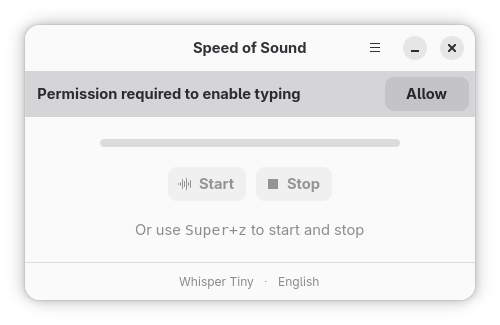
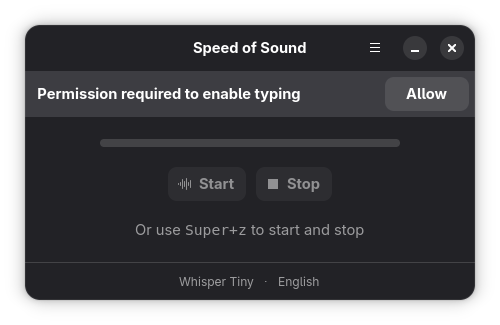
After clicking Start, your system will show the Remote Desktop permissions dialog. You must check Allow remote interaction, which is required for the application to simulate keyboard input. You should also check Remember this selection. Without it, you will need to re-accept these permissions every time you launch Speed of Sound.
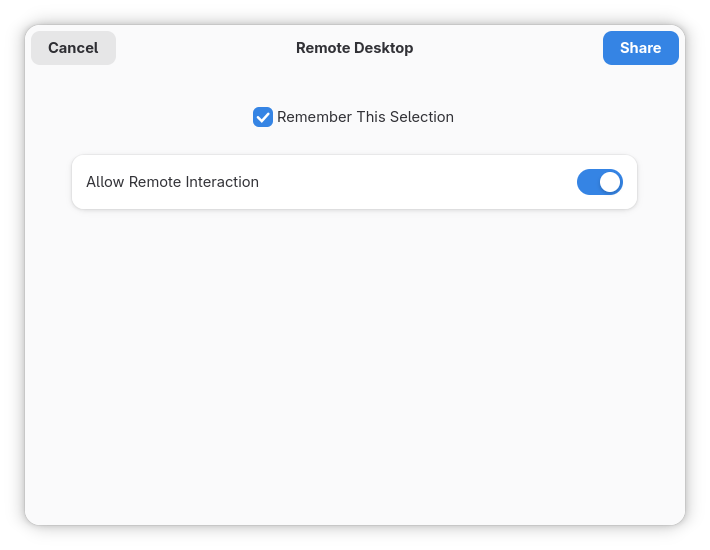
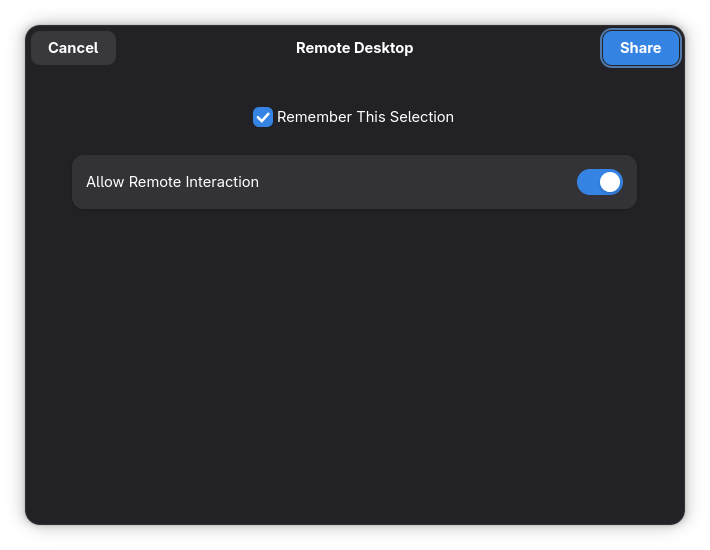
Under the hood, Speed of Sound uses the XDG Desktop Portal standard to simulate keyboard input. This is supported by all major desktop environments, including GNOME and KDE, and works on both X11 and Wayland.
3. Set up a shortcut
By default, the Super+Z keyboard shortcut starts and stops listening, but only when the Speed of Sound window is
open and focused. For a better experience, we recommend setting up a global shortcut in Preferences. This lets you
keep the window minimized or hidden and trigger Speed of Sound from anywhere, typing directly into any app.
Follow the instructions under Set Up a Keyboard Shortcut.